How to translate an email in Outlook, Gmail and offline
How to translate emails in Outlook and Gmail, where the built-in translators fall short, and how to translate an email and your reply offline on your PC.
The quickest way to translate an email is right where it is: in Outlook, choose More actions › Translate › Translate message; in classic Outlook you can also use Home › Translate. In Gmail, open the message, click More and then Translate message. Both send the text to a translation service on the internet.
It gets harder in three situations: when you want to write your reply in another language, when your mail app has no translator (Gmail, for example, does not translate messages in IMAP accounts), or when the text must not leave your PC. For those there is Celerando, a translator that runs on your PC. This guide shows both ways.
Translate an email in Outlook
Outlook has a built-in translator that uses the online Microsoft Translator service. The steps depend on your version of Outlook.
New Outlook and Outlook on the web:
- Open the message. If it is in another language, Outlook often offers a translation at the top.
- Otherwise select More actions (the three dots) › Translate › Translate message.
- To go back, select Show original message.
Classic Outlook:
- Open the message and select Home › Translate › Translate Message, or right-click the message and choose Translate.
- To translate only part of the message, select the text and right-click it. The translation appears in the context menu.
- Which language Outlook translates into, and whether it asks first, is set under Home › Translate › Translation Preferences.
In new Outlook and on the web, the translation options are under View › View settings › Mail › Message handling, in the translation section.
When “Translate” is missing in Outlook
- New Outlook: The translator only appears when connected experiences are turned on: View › View settings › General › Privacy and data › Privacy settings. In companies, IT sometimes turns these experiences off centrally. Then the translator stays hidden, and only IT can bring it back.
- Automatic translation and translation suggestions are, according to Microsoft, only available for Exchange Online mailboxes. With other accounts you translate each message by hand.
- Outlook on the web and Outlook.com do not translate messages with fewer than 40 characters.
Write your reply in another language
Reading is usually the smaller problem. Writing the reply in Spanish, French or German takes longer. Microsoft describes translating while composing only for classic Outlook: you select text in your draft, right-click it and insert the translation with one click. For new Outlook and the web the help page does not mention this, and Gmail’s help only covers translating messages you received.
The usual workaround is a browser tab with a translation service: write the reply, copy it, paste it, copy the translation back. That works, but your text ends up on yet another server, and for emails with client names, prices or medical details that is often exactly what you are supposed to avoid.
Translate emails offline with Celerando
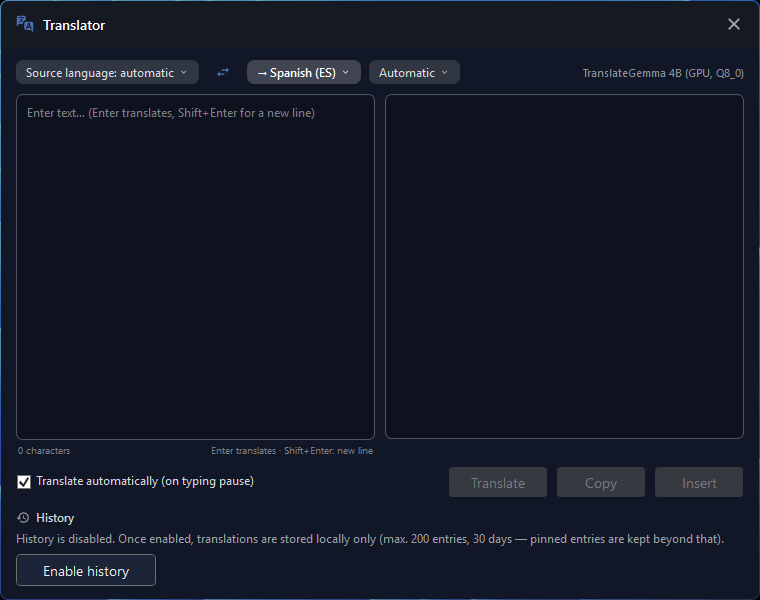
Celerando is a Windows app with a translator that runs entirely on your PC. The translation model, TranslateGemma, is downloaded once and then lives on your disk; after that Celerando translates without an internet connection, and the text never leaves the machine. It works with any mail app, because the translator is not built into Outlook or Gmail but runs next to them: you open it as a tile in the dashboard or as its own window via hotkey.
Translate an email you received
- Install Celerando. The installer is signed and needs no admin rights and no account.
- Set up the translator once. Celerando downloads the model, about 2.5 GB in the free version. This happens only once.
- Copy the text of the email and paste it into the translator. Celerando detects the source language itself; you only pick the target language.
- Read. Long emails are translated section by section. Finished sections appear right away while the next ones are still running.
Translate your reply and insert it
- In Outlook (or Gmail, Thunderbird, a ticket system) click Reply and leave the cursor in the reply field.
- Type your reply in your own language into the translator. If you like, Celerando translates while you are still typing.
- Choose the form of address: where the target language distinguishes formal and informal, as French, Spanish, German or Dutch do, you set it or let Celerando choose automatically.
- One click inserts the translation straight into the window you were last writing in, which is your reply. Or copy it to the clipboard.
Read the translation once before you send it. That applies to every machine translator, and to a local model in particular: Celerando is weaker than the big cloud services on long or stylistically demanding texts. For everyday text such as emails, paragraphs and notes, the quality is good enough to work with.
If you would rather talk than type, you can dictate the reply first; the guide Speech to text on Windows 11 shows how.
What the editions can do
- Free (no cost, forever): translation between your system language and English, in both directions. Strictly speaking, it is the language of Celerando’s interface, which on first launch is your Windows display language where Celerando offers it. If the interface is English, the free pair is English ↔ German.
- Pro (€36 one-time): all 19 languages in every direction, including Spanish, French, German, Italian, Portuguese, Dutch and Polish, plus model choice and GPU acceleration with a dedicated graphics card.
You can try every feature free for 14 days; after that Celerando keeps running as Free. The overview is on Editions and prices.
What offline means here
The translation itself opens no connection; try it in flight mode. Celerando goes online only for the downloads you choose (models, additional languages, optionally the CUDA runtime), the update check, license activation including the query of occupied seats, a one-time installation ping on the very first launch, and addresses you enter yourself (web app tiles load the site’s icon, the connections tile checks your servers). Translated text is never part of it. The translation history is off by default; if you turn it on, it is a file in your user profile.
The email itself, of course, stays wherever your mailbox lives. Celerando does not change who stores your emails, only who else gets to see them for translation.
Outlook translator or Celerando: comparison
| Outlook “Translate” | Celerando | |
|---|---|---|
| Where translation happens | online Microsoft Translator service | on your PC |
| Internet while translating | required | no, after the one-time model download |
| Emails you received | yes, one click in the message | copy and paste the text |
| Translate your reply | according to Microsoft, classic Outlook only | in any mail app, inserted into the last window you used |
| Automatic translation | Exchange Online mailboxes only | translate while typing, if you want |
| Formal/informal address | not mentioned by Microsoft | yes, where the target language distinguishes it |
| Requirement | new Outlook: connected experiences turned on | Windows 10 or 11, about 2.5 GB for the model |
| Languages | no list on the help page | Free: system language ↔ English (English interface: English ↔ German); Pro: 19 languages |
| Cost | included in Outlook | Free at no cost; Pro €36 one-time |
Gmail translates messages you received via More › Translate message, but according to Google only in Google Accounts, not in IMAP accounts. Google’s help describes no translation for your own reply.
Frequently asked questions
How do I translate an email in Outlook into English?
Open the message and choose More actions › Translate › Translate message, in classic Outlook Home › Translate › Translate Message. You set the target language in the translation preferences.
Why is “Translate” missing in new Outlook?
Usually connected experiences are turned off, either by you or by your company’s IT. Without them, new Outlook does not show the translator.
Can Outlook translate emails automatically?
Yes, but according to Microsoft only for Exchange Online mailboxes. With other accounts you translate each message individually.
How do I write a reply in a language I barely speak?
Write the reply in your own language in a translator and paste the result into your email. Read it once before you send it. Celerando can insert the translation straight into the reply window, and it does so on your PC.
Is my email stored when Outlook translates it?
Microsoft says the text goes to the online Microsoft Translator service, the transmission is secured with SSL, and the content is not stored but processed in memory only. So the text does leave your PC, but according to Microsoft it is not kept.
Can I translate confidential emails with an online translator?
That is up to your company’s or firm’s data protection rules, not the translator. A local translator like Celerando changes the starting point: there is no third party processing the text for the translation. More on Offline translation on Windows.
Which languages does Celerando translate?
Nineteen: German, English, Spanish, French, Italian, Dutch, Portuguese, Polish, Czech, Danish, Swedish, Norwegian (Bokmål), Finnish, Hungarian, Romanian, Greek, Turkish, Russian and Ukrainian. Free covers your system language and English (with an English interface, English and German), Pro all 19.
Sources
As of October 27, 2026.
- Microsoft Support: Translator in Outlook for Windows (steps in new and classic Outlook, translating while composing, connected experiences, Exchange Online, 40 characters, privacy)
- Gmail Help: Translate Gmail messages (steps on a computer, Google Accounts only, not IMAP)
More guides
- How to translate a PDF: Google, Word, or without uploadingHow to translate a PDF with Google Translate or in Word, what to do with scanned pages and large files, and how to translate it offline on your PC.
- How to translate a Word document, even without uploading itHow to translate a Word document with Word's built-in Translator, what to do when Translate is grayed out, and how to translate it offline on your PC.
- Google Translate offline on PC: does it work?How to download Google Translate languages for offline use, why that doesn't work on a PC, and how to translate on Windows without internet.