Google Translate offline on PC: does it work?
How to download Google Translate languages for offline use, why that doesn't work on a PC, and how to translate on Windows without internet.
You can use Google Translate offline by downloading a language in the Translate app on your phone or tablet: connect to Wi-Fi, open the app, select the language and tap the download icon next to it. After that, the app translates text in that language without a connection.
On a PC, that option doesn’t exist. Google documents offline languages only for the app on Android and on iPhone and iPad; the help page has no tab for computers. Google Translate in the browser is a website, and a website needs a connection. To translate on Windows without internet, you need a program that translates on the computer itself. This guide covers both: offline languages in the app and an offline translator for your PC.
Set up Google Translate offline on your phone
The steps come from Google’s help and differ slightly by platform.
Android:
- Connect your phone to Wi-Fi.
- Open the Translate app and select the language you need offline at the bottom.
- Tap the download icon next to the language and confirm if the app asks.
You’ll find your languages under Downloaded afterward. To allow downloads over mobile data, open the menu and go to Settings › Data usage › Downloaded languages, then choose Ask before downloading or Use Wi-Fi or mobile network.
iPhone and iPad:
- Connect to Wi-Fi and open the Translate app.
- Tap the language name at the top on either side of the screen.
- Tap the download icon next to the language you want and confirm if prompted.
A downloaded language is marked with a Downloaded icon. To manage your languages, tap the Settings icon › Offline translation.
What works offline and what doesn’t
- Text translation: yes, in every downloaded language.
- Camera translation: according to Google, only for some languages. They’re listed separately in the help center.
- Other features: Google’s offline help mentions only these two. Don’t count on features like voice input working without a connection when you travel; test it in airplane mode first.
- Not every language: If there’s no download icon next to a language, Google says it can’t be downloaded.
When Google Translate offline isn’t working
- A language is missing offline: Check Downloaded languages (Android) or Offline translation (iPhone, iPad) to see whether it’s really there, and download it again over Wi-Fi if not.
- The download doesn’t start: On Android, without Wi-Fi the app downloads only if you’ve allowed mobile data under Data usage.
- Translations seem outdated or rough: Next to each language the app offers Update and Upgrade. According to Google, Upgrade downloads a larger, higher-quality pack.
- Nothing works offline on your PC: That’s not a bug. Offline languages exist only in the app, not on translate.google.com.
Offline translation on a PC: why Google can’t do it
On your phone, offline mode is a good fallback for travel. At your desk it’s a different situation: you’re on Windows, the text is in an email, a document or a ticket, and you don’t want to move it to your phone first. In the browser, Google Translate is an online service: without a connection it translates nothing, and with one, your text goes to Google to be translated. With client names, prices or medical details in the text, that’s often exactly what you’re supposed to avoid.
So on a PC you need a translator whose language model lives on your own drive, like the app’s offline languages, just on Windows.
Translate offline on Windows with Celerando
Celerando is a Windows app with a translator that runs entirely on your PC. It uses TranslateGemma, a translation model by Google built on Gemma 3 and prepared for Windows by Menterium. That isn’t the Google Translate service; it’s a model that lives on your drive after a one-time download. From then on, Celerando translates without internet, and your text never leaves the computer. More on the offline translation page.
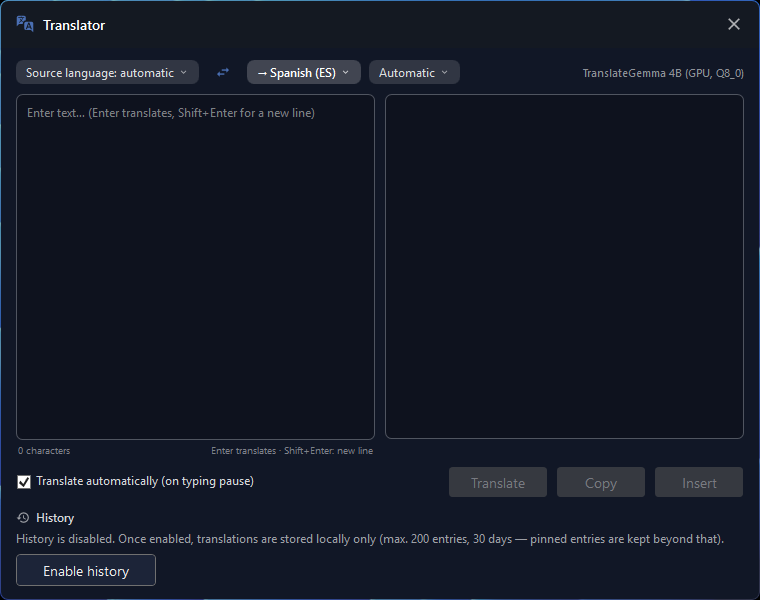
How to set it up
- Install Celerando. The installer is signed and needs no admin rights and no account. Celerando runs on Windows 10 and later.
- Open the translator as a tile on the dashboard or as its own window with a hotkey.
- Download the model once. In the free version, that’s TranslateGemma 4B for the CPU, about 2.5 GB. It’s the equivalent of downloading a language in the Google app, except it happens once for all the languages in your edition. This step needs a connection; nothing after it does.
- Paste or type your text. Celerando detects the source language on its own; you just pick the target language. If you like, it translates while you type.
- Use the result. One click copies the translation to the clipboard or inserts it straight into the window you were last typing in, such as your email.
To check, disconnect from the network or turn on airplane mode: the translation keeps working.
What each edition includes for translation
- Free (no cost, no time limit): translation between your interface language and English, in both directions. The interface starts in your Windows display language if Celerando offers it. With an English interface, the free pair is English ↔ German, so for Spanish, French or any other language you’ll need Pro.
- Pro (€36 one-time): all 19 languages in every direction: German, English, Spanish, French, Italian, Dutch, Portuguese, Polish, Czech, Danish, Swedish, Norwegian (Bokmål), Finnish, Hungarian, Romanian, Greek, Turkish, Russian and Ukrainian. Plus the GPU variants of the model: TranslateGemma 4B for the graphics card (about 4.1 GB, from 6 GB of graphics memory) and TranslateGemma 12B (about 7.3 GB, best with 12 GB of graphics memory or more), which is clearly better at Hungarian, Turkish, Finnish, Polish and Czech.
You can try every feature free for 14 days; after that, Celerando keeps running as Free. The full overview is on Editions and pricing.
Where Celerando falls short
A model that runs on your PC is much smaller than the models behind the big cloud translators and doesn’t match their quality. For everyday text like emails, paragraphs, notes and technical writing, the result is good enough to work with; with literary or very long texts, you’ll notice the difference. Without a graphics card, the CPU variant runs on any PC with Windows 10 or later, just noticeably slower. And Celerando is a Windows app: on your phone while traveling, the Google app with its offline languages is still the right tool.
What “offline” means here
The translation itself never opens a connection. Celerando only goes online for downloads you choose (models, additional languages, optionally the CUDA runtime), the update check, license activation including the query of occupied seats, a one-time installation ping on the very first launch, and addresses you enter yourself (web app tiles load the site’s icon, the connections tile checks your servers). Translated text is never part of any of it. The translation history is off by default; if you turn it on, it’s a file in your user profile.
Two common uses on a PC have their own guides: translating an email and translating text in an image.
Google Translate offline vs. Celerando
| Google Translate (offline languages) | Celerando | |
|---|---|---|
| Device | App on Android, iPhone and iPad | Windows 10 and 11 |
| Offline on a PC | not offered; the website needs internet | yes, after the one-time model download |
| What works offline | text, camera translation for some languages | text translation, all languages in your edition |
| Preparation | download each language separately | one model for all languages, about 2.5 GB (CPU) |
| Languages offline | not every language can be downloaded | Free: interface language ↔ English (English interface: English ↔ German); 19 languages from Pro |
| Text into other programs | through your phone’s clipboard | copy, or insert straight into the last window you used |
| Formal/informal address | not mentioned in the offline help | yes, where the target language distinguishes them |
FAQ
Can I use Google Translate offline?
Yes, in the app on Android, iPhone and iPad. Download the languages over Wi-Fi first; after that, the app translates text in those languages without a connection.
Can I use Google Translate offline on a PC?
No. Google documents offline languages only for the phone and tablet app. Google Translate in the browser needs an internet connection. On Windows, a local translator like Celerando fills the gap.
Which languages are available offline?
The app shows you: if a language has no download icon next to it, Google says it can’t be downloaded. The help page doesn’t give a full list of offline languages, only one for camera translation.
Why isn’t Google Translate working offline?
Usually one of the two languages isn’t downloaded, or the download never ran because there was no Wi-Fi and mobile data wasn’t allowed. Check your list of downloaded languages and add what’s missing.
How much storage do offline languages need?
Google doesn’t give sizes, only that the language files are small and that an upgrade downloads a larger, higher-quality pack. Celerando’s translation model is bigger: about 2.5 GB in the free CPU variant, but once for all languages.
Is Celerando Google Translate for Windows?
No. Celerando uses TranslateGemma, a translation model by Google that Menterium prepared for Windows and that runs on your PC. Google Translate itself is an online service from Google; Celerando has nothing to do with that service and doesn’t send any text to Google.
Do I need a graphics card for Celerando?
No. The CPU variant runs on any PC with Windows 10 or later, just more slowly. With a dedicated AMD, Intel or NVIDIA graphics card, translation gets much faster from Pro.
Sources
As of November 4, 2026.
- Google Translate Help: Download languages to use offline (Android) (steps, mobile data, Update, Upgrade, camera translation)
- Google Translate Help: Download languages to use offline (iPhone & iPad) (steps, managing offline translation)
More guides
- How to translate a PDF: Google, Word, or without uploadingHow to translate a PDF with Google Translate or in Word, what to do with scanned pages and large files, and how to translate it offline on your PC.
- How to translate a Word document, even without uploading itHow to translate a Word document with Word's built-in Translator, what to do when Translate is grayed out, and how to translate it offline on your PC.
- How to translate an email in Outlook, Gmail and offlineHow to translate emails in Outlook and Gmail, where the built-in translators fall short, and how to translate an email and your reply offline on your PC.