Voice typing in Windows 11: turn it on, fix it, know its limits
Voice typing with Win+H in Windows 11 and 10: turn it on, fix it when it's not working, know its limits, and dictate without internet or Microsoft's servers.
Press Win+H in Windows 11 or Windows 10 and the built-in voice typing starts: you speak, and the text appears in whatever text box is active, in Word, Outlook or your browser. Voice typing has firm limits, though. It doesn’t work without internet, your speech is sent to Microsoft’s servers for recognition, and you can’t teach it names or technical terms.
This guide shows how to turn voice typing on and fix the usual problems, and when speech recognition that runs on your own PC is the better choice.
What Windows voice typing can’t do
- It only works online. Microsoft says so itself: voice typing uses online speech recognition, powered by its Azure Speech services, and you need to be connected to the internet. On a train, in a dead spot or on a locked-down company network, the text box stays empty.
- Your voice goes to Microsoft. Recognition doesn’t happen on your PC but in Microsoft’s cloud. Separately, you can choose to contribute voice clips to help improve the service. This is optional and isn’t required to use voice typing; online recognition still needs a connection to Microsoft. For confidential dictation, about clients, patients or staff, that is often unwanted or not allowed. On company PCs, IT therefore sometimes turns online speech recognition off altogether.
- It doesn’t learn new words. There is no custom dictionary and no training. If your name, your company name or a technical term comes out wrong, you can’t add it to a custom dictionary.
Celerando combines local speech recognition with a Personal Dictionary for names and technical terms (from Pro). Once the speech model is downloaded, recognition works without internet; the recording is processed on your PC.
Turn on voice typing
Windows 11:
- Click into the field where the text should go, for example a new email in Outlook.
- Press Win+H. A small bar appears with a microphone, a gear icon and a question mark.
- Wait for the “Listening…” alert, then speak at a normal pace.
- To stop, click the microphone in the bar.
On tablets and touch laptops, the microphone button on the touch keyboard works too.
Windows 10: There the feature is called dictation, and it also starts with Win+H. It needs internet as well.
Voice typing not working: causes and fixes
”Voice typing needs access to your microphone”
Windows has denied voice typing access to the microphone. On Windows 11, open Settings › Privacy & security › Microphone and turn on Microphone access. On Windows 10, use Settings › Privacy › Microphone.
”Voice typing isn’t available in the current language”
Voice typing follows the active input language. Press Win+Space to switch between your installed languages. If the active one isn’t supported, switch to one that is, such as English, or add a language under Settings › Time & language › Language & region on Windows 11, or Settings › Time & Language › Language on Windows 10.
The bar appears, but no text comes
- No cursor in the text box. Click into the field before you press Win+H. Voice typing deliberately doesn’t work in password fields.
- No internet connection. Without a connection to Microsoft’s online speech recognition, the field stays empty.
- Wrong or quiet microphone. Under Settings › System › Sound, the Input section shows which microphone is active. Say a few words and watch the level, raise the input volume or use a headset.
Win+H does nothing at all
- Many gaming keyboards have a lock for the Windows key. Check whether it’s on.
- Some programs claim Win+H for themselves. Try the microphone button on the touch keyboard: if that works, the shortcut is the problem.
- On company PCs, IT can turn off online speech recognition, through the privacy settings or a central policy. Then only your IT department can help, or a tool that doesn’t depend on Microsoft’s online service.
Recognition is poor
Speak in a quiet place and not too fast, use a headset instead of the laptop microphone, and check with Win+Space that the right language is active. If names and technical terms still come out wrong, it isn’t you: voice typing simply doesn’t know them, and you can’t teach it.
Celerando: speech recognition that stays on your PC
Celerando is a Windows app built for exactly the limits of Windows voice typing. You press a system-wide hotkey, speak, and the text lands where your cursor is: in Outlook, Word, your browser or Teams. From the Pro edition, a small overlay above the taskbar shows that Celerando is listening, which engine it uses and for how long:
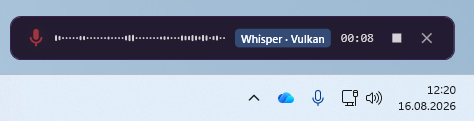
- Recognition on your PC. Celerando uses Whisper by OpenAI or Parakeet by NVIDIA, both running entirely on your computer. Your voice is never uploaded.
- No internet needed. You download the speech model once; after that, dictation works on a train or in isolated networks too.
- Your own dictionary (from Pro). The Personal Dictionary teaches Celerando names, company names and technical terms. Regex rules can post-process the recognized text as well.
- Many languages. 26 languages are recognized well (from Pro); Parakeet covers 17 European languages well and detects the spoken language automatically (Business).
- More ways to dictate (Business). Besides toggling with a hotkey, there’s push-to-talk, an auto mode and streaming with live text. Smart Modes tidy up dictated text with a local language model, for example removing filler words or turning it into a finished email.
Editions:
- Free: voice input with Whisper Small or Base in your system language, up to 30 seconds per recording.
- Pro (€36 one-time): 26 well-recognized languages, unlimited recording length, Personal Dictionary and regex post-processing.
- Business (€63 one-time): adds Parakeet with automatic language detection, push-to-talk, auto mode, streaming and Smart Modes.
You can try all features free for 14 days; after that, Celerando keeps running as Free. You don’t need a graphics card: the small Whisper models run on the CPU. Which hardware suits which model is on Voice input requirements, and all editions are compared on Editions and prices.
Celerando connects to the internet only for the downloads you choose yourself (speech models, additional languages, optionally the CUDA runtime), the update check, license activation including the query of occupied seats, a one-time installation ping on the very first launch, and addresses you enter yourself (web app tiles load the site’s icon, the connections tile checks your servers). Recordings and text are never part of it; the details are on Dictation on Windows.
Comparison: Windows voice typing and Celerando
| Voice typing (Win+H) | Celerando | |
|---|---|---|
| What for | text into any text box | text into any program |
| Where recognition happens | Microsoft’s servers | on your PC |
| Internet while dictating | always | no, only once to download the speech model |
| Your own words | no | Personal Dictionary (from Pro) |
| Requirement | Windows 10 or 11 | Windows 10 (build 19041) or 11, x86-64 PC |
| Cost | free | Free edition free, Pro €36 one-time |
Two more Microsoft tools take speech input:
- Voice access (Windows 11, version 22H2 or later): an accessibility feature for controlling the whole PC by voice command; it can dictate text too. It recognizes speech on the device and needs internet only to download the language the first time. It replaces the classic Windows Speech Recognition and is designed mainly for people who want to operate the computer entirely without mouse and keyboard.
- Dictate in Word for Windows: a button in Word, available only with a Microsoft 365 subscription, according to Microsoft. Your speech is sent to Microsoft for recognition, and the text only goes into Word. In Office 2016 or 2019 without a subscription, the button is missing.
Frequently asked questions
Does Windows voice typing work offline?
No. Voice typing with Win+H uses Microsoft’s online speech recognition and always needs a connection. Offline options in Windows 11 are voice access (after setup) and apps like Celerando that recognize speech locally.
How do I change the voice typing language?
Voice typing uses the active input language. Press Win+Space to switch between installed languages. Add new ones under Settings › Time & language › Language & region (Windows 11) or Settings › Time & Language › Language (Windows 10).
Can you train Windows voice typing?
No. Voice typing has no voice training and no custom dictionary. Training was part of the classic Windows Speech Recognition, which Microsoft has deprecated in favor of voice access. Voice access can learn custom words, but it’s built for controlling the whole PC by voice command. For dictation with your own names and terms, there is Celerando’s Personal Dictionary.
Can I dictate in Word without Microsoft 365?
Yes. The Dictate button in Word for Windows requires a Microsoft 365 subscription, but both Windows voice typing (Win+H) and Celerando type into any text box, including Word 2016, 2019 or 2021.
How do I turn voice typing off?
Voice typing is only active while you’ve started it with Win+H. The small microphone button that can appear in text boxes is turned off in the voice typing settings under Voice typing launcher.
Sources
As of October 2026, Windows 11 and Windows 10.
- Microsoft Support: Use voice typing to talk instead of type on your PC
- Microsoft Support: Voice typing isn’t working in Windows
- Microsoft Support: Speech, voice activation, inking, typing, and privacy
- Microsoft Support: Voice access frequently asked questions
- Microsoft Support: Use voice access to control your PC & author text with your voice
- Microsoft Support: History of voice access updates
- Microsoft Learn: Deprecated features in the Windows client
- Microsoft Support: Dictate your documents in Word
More guides
- ChatGPT dictation: use voice to text on PC, fix it, alternativeHow to dictate into ChatGPT with the microphone icon, what to check when it stops working, and how to speak prompts on your PC without uploading the recording.
- How to dictate in Word, even without Microsoft 365Dictate button missing or grayed out in Word? What Word's dictation needs, what to do with Office 2016/2019, and how to dictate offline without a subscription.
- How to Use Voice Typing in Google Docs, and Fix ItStart voice typing in Google Docs, fix a missing menu or a silent microphone, and dictate into Docs from any browser with speech recognized on your PC.