How to organize desktop icons in Windows and keep them tidy
Sort, arrange and hide desktop icons in Windows 10 and 11, move files off the desktop, and when a tile dashboard works better than the desktop.
To organize desktop icons in Windows, right-click an empty spot on the desktop. Sort by lines them up by Name, Size, Item type or Date modified. View has the icon size, Auto arrange icons and Align icons to grid. If you would rather see no icons at all, uncheck Show desktop icons in the same menu. Before you sort, move the files off the desktop and delete the shortcuts you no longer use, or you are just arranging the clutter.
That gives you a clean desktop for an afternoon. It only stays clean if the things you open every day have a permanent place somewhere else. This guide covers both: cleaning up with what Windows has built in, and a home for programs, folders and websites that does not fill up again.
Why the desktop keeps filling up
The desktop does two jobs at once: it is storage for files (downloads, attachments, “just saving this here for a minute”) and a launchpad for programs and folders. Both grow. It also has three limits that no sorting option fixes:
- It is usually covered. As soon as a window is open, the icons are underneath it. To reach one, you minimize everything or go through File Explorer.
- It has no groups. Windows sorts by name, size, type or date, but not by “Project A” or “Accounting”. With thirty icons, sorting by type does not help much.
- It travels with you. If you back up your Desktop folder with OneDrive, Microsoft notes that the items on your desktop roam with you to your other PCs running OneDrive. So does the mess.
That is why it pays to separate storage from launching: files belong in folders, and what you start every day needs a place you can always reach.
With Celerando: programs, folders and websites as tiles
Celerando is a tile dashboard for Windows 10 and 11. Instead of the desktop, your programs, files, folders and websites sit in named groups that you create yourself and reorder by drag and drop. Empty groups clean themselves up.
What replaces the desktop as a launchpad:
- Alt+Q opens the dashboard at your mouse position, no matter which app you are in. No minimizing, no trip to the Start menu; on a multi-monitor setup it appears where the mouse is. The built-in search finds any tile.
- Right-click a file or folder in File Explorer › “Pin to Celerando”. Or drag it onto the tile surface.
- Websites as tiles: right-click the dashboard › “Add web app”, or press Ctrl+V if the address is already in your clipboard. The site’s icon becomes the tile image automatically. More in the guide Save a website to your desktop.
- Multistart tiles open several programs and websites at once, for example everything you need in the morning.
- Recently used files appear in an optional panel, sorted by recency. That replaces the habit of saving a file “on the desktop for now” so you can find it again.
- Appearance: more than 13,000 Material Design icons; color, size (extra-small to extra-large) and background of every tile can be set.
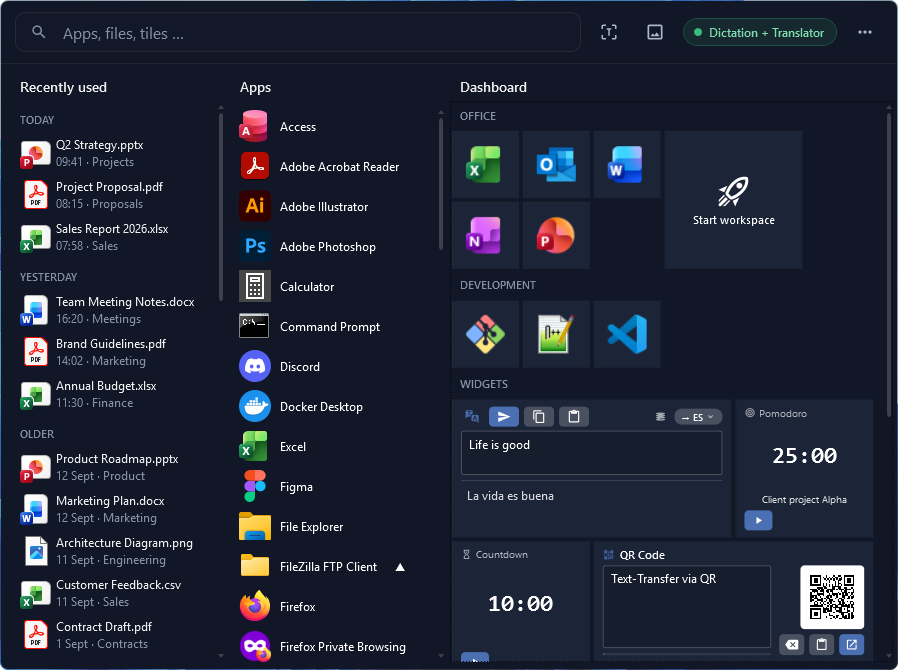
Celerando does not clean up the desktop for you: it does not move or sort files. You sort the files themselves once in File Explorer (steps below); Celerando then gives the folders and programs you use every day their permanent place.
Editions: The dashboard with groups, Alt+Q, Explorer integration, recently used files, multistart and web app tiles is included in Free, the free edition, but with at most 5 tiles (10 with email registration, Free+). As a desktop replacement that is tight. Pro (€36 one-time, no subscription) removes the limit. You can try every feature free for 14 days; see Editions and prices. Celerando installs into your user profile and needs no admin rights.
Step by step: clean up your desktop
1. Get an overview
Right-click an empty spot on the desktop › Sort by › Item type. Shortcuts, folders, documents, pictures and installers then sit together, so you can quickly see what is a file and what is only a pointer to one.
2. Move files into folders
Documents, pictures and downloads belong in their folders, for example under Documents and Pictures, with a subfolder per project if you like. Select several files by holding Ctrl and drag them to the target folder in File Explorer.
If you do not want to sort every file, create a folder called “Old desktop” with today’s date and move everything into it. Whatever you have not taken out of it in a few weeks, you probably do not need.
3. Weed out shortcuts
Installers (setup files, .msi) for programs that are long installed, and shortcuts to programs you no longer use, can go. Deleting a shortcut does not remove the program, only the pointer to it.
4. Give your daily tools a permanent place
Put the programs and folders that are left somewhere permanent:
- Start menu: right-click an app, or a folder in File Explorer › Pin to Start. In Windows 11, drag one pinned item onto another to create a folder.
- Taskbar: right-click the app › Pin to taskbar. That works for a handful of programs.
- Celerando: right-click in File Explorer › “Pin to Celerando”, in your own groups, reachable on top of any window with Alt+Q, websites included.
5. Arrange or hide what is left
Whatever stays on the desktop you arrange via right-click › View: Auto arrange icons lines up every icon, Align icons to grid keeps icons from landing at random positions, and the icon size is set there too.
For an empty desktop, uncheck Show desktop icons under View. The files stay in the Desktop folder and remain reachable in File Explorer; they are just no longer shown on screen.
Troubleshooting
| What happens | What helps |
|---|---|
| All icons are suddenly gone | Right-click an empty spot › View › check Show desktop icons again |
| Recycle Bin or This PC is missing | Right-click the desktop › Personalize › Themes › under Related settings, Desktop icon settings; check the icons, then Apply and OK |
| Icons jump back into line when you move them | Auto arrange icons is on under View. Uncheck it and icons stay where you drop them |
| The desktop is just as cluttered on another PC | Your Desktop folder is backed up with OneDrive. In OneDrive settings › Sync and backup › Manage backup you can see which folders are backed up |
| Two weeks after cleaning up it is full again | The cause is usually the habit of saving files to the desktop “for now”. Create a fixed folder for that, or use the recently used files panel in Celerando |
Celerando vs. the Windows desktop
| Celerando dashboard | Windows desktop | |
|---|---|---|
| Reachable with windows open | yes, with Alt+Q at the mouse position | only after minimizing the windows |
| Groups | named groups, reordered by drag and drop | none; sort by Name, Size, Item type, Date modified |
| Search | built-in search across all tiles | none of its own, via Windows search |
| Websites | web app tile with the site’s icon | shortcut (.url) or installed as an app |
| Start several programs together | yes, multistart tile (also in Free) | no, every icon on its own |
| Store files | no, tiles point to programs, files, folders and sites | yes, the desktop is a folder |
| How many | Free up to 5 tiles (Free+ 10), unlimited from Pro | unlimited |
| To another PC | export the dashboard to a file and import it | via the OneDrive backup of the Desktop folder |
| Price | Free at no cost, Pro €36 one-time | included in Windows |
As of November 2026. For a handful of programs, the taskbar and Start menu are enough. Celerando pays off when you work with many programs, folders and websites every day and want to reach them without pushing your windows aside.
Third-party desktop organizers sort icons into areas on the desktop. The desktop then still does both jobs, storage and launchpad, and it is still hidden behind your windows.
FAQ
How do I auto arrange desktop icons?
Right-click an empty spot on the desktop › View › Auto arrange icons. Sort by sets the order. Windows does not move files into folders or delete old shortcuts for you; that stays manual, once thoroughly and then in small steps.
Does hiding desktop icons delete my files?
No. Show desktop icons only hides the display. The files stay in the Desktop folder and you can reach them in File Explorer. Check the same option to bring them back.
How do I make desktop icons smaller?
Right-click an empty spot › View and pick a smaller icon size.
Is a desktop shortcut the same as the file?
No. A shortcut only points to a program, file or folder. Delete it and the target stays. Delete a file that sits directly on the desktop, however, and it goes to the Recycle Bin.
Can I pin folders in Celerando?
Yes. The dashboard holds apps, web apps, files and folders, added by right-clicking in File Explorer or by drag and drop. A project folder as a tile replaces the folder that would otherwise sit on your desktop. For text you type again and again there is also the text templates tile, see Text snippets on Windows.
Can I take my dashboard to a new PC?
Yes. The dashboard can be exported to a file and imported on another computer. More on Start your workspace.
Sources
- Microsoft: Where have my Desktop icons gone? (accessed November 11, 2026)
- Microsoft: Windows Backup Settings Catalog, section “Other Windows settings” › “Desktop”, Windows 11 and 10 (accessed November 11, 2026)
- Microsoft: Customize the Windows Start Menu (accessed November 11, 2026)
- Microsoft: Customize the Taskbar in Windows (accessed November 11, 2026)
- Microsoft: Back up your folders with OneDrive (accessed November 11, 2026)
More guides
- How to Ping an IP Address on Windows: Ping Test and Continuous PingRun a ping test in Command Prompt, start a continuous ping with ping -t, and learn what Request timed out and Destination host unreachable mean.
- Recent Files in Windows 11 and 10: Find, Hide and Clear ThemWhere Windows shows your recently opened files: File Explorer, Start, Jump Lists and Office. Plus how to hide or clear the list and keep files pinned.
- How to get the old right-click menu back in Windows 11Restore the full Windows 10 context menu in Windows 11: once with a shortcut, permanently with a registry entry or with a switch in Celerando.