Offline QR code generator on Windows: text to QR, no upload
Turn text or a link into a QR code on your PC with Word, Chrome or a dashboard tile: no website, no upload and no code that stops working after a trial.
You don’t need a website to turn text into a QR code. On a Windows PC there are three offline ways: the DisplayBarcode field in Word, Chrome’s QR code for the page you have open, and a QR code tile like the one in Celerando, where you type any text or link. All three build the code on your computer; the text never goes to a server.
Most people still reach for a generator website, and that has two catches. With many services, your text, maybe a Wi-Fi password, an address or an internal reference, ends up on their server, and you can’t tell from the page whether it does. And some codes from those services don’t contain your text at all, only a short link of the provider that redirects. It works as long as the provider keeps redirecting. Anyone who has printed such a code and suddenly lands on a subscription page goes looking for a “QR code generator with no expiration”.
This guide covers the three offline ways, when each one fits, and what to do when the phone won’t read the code.
What a QR code actually holds
A QR code stores data directly in its pattern of black and white squares. According to DENSO WAVE, the company that invented it, it holds at most 7,089 digits, 4,296 alphanumeric characters or 2,953 bytes of arbitrary data. That is the limit of the largest code (version 40) at the lowest error correction. Error correction has four levels, from L (about 7% of the code can be lost) to H (about 30%).
Two practical consequences:
- A code that contains the text itself never expires. There is no server that could be switched off. In return, you can’t change it: new text means a new code.
- More text means a finer pattern. A link or a sentence is easy to scan, even off a screen. With a long paragraph the squares get small, and the camera needs more light and distance. Accented characters take two bytes each in the usual UTF-8 encoding.
Tools you may already have: Word and Chrome
Word: the DisplayBarcode field
Word for Windows can make QR codes without an add-in, hidden in a field code. Microsoft documents it for Word for Microsoft 365, 2024, 2021, 2019 and 2016, and only for Word for Windows (desktop):
- Put the cursor where the code should go.
- Press Ctrl+F9. Word inserts the curly brackets; typing them yourself won’t work.
- Inside the brackets, type:
DisplayBarcode "Your text" QR \q 3 - Right-click the field › Toggle Field Codes. The code appears.
\q sets the error correction (0 to 3), \s scales the code (10 to 1000 percent). Put your text in
quotes, as in Microsoft’s example. If the data doesn’t meet the requirements of the barcode type,
Microsoft says the barcode may not render.
For flyers, notices and documents this is the best route, because the code sits in the document and prints with it. It’s clumsy when you just want to get some text onto your phone: open Word, insert the field, toggle it.
Chrome: a QR code for the open page
Chrome creates a QR code for the page you have open: More menu (three dots) › Cast, save, and share › Create QR code. You can download the code or scan it right away with your phone’s camera.
The limit: Chrome is built around the address of the open page. You can overwrite the address field in the dialog, and then other text becomes the code too; Google doesn’t document that, though, and for notes or passwords it’s a detour through a web page that has nothing to do with them.
With Celerando: type text, get a code
Celerando is a Windows app with a dashboard of tiles that you open over any program with Alt+Q. One of the tiles is the QR code tile: enter text or a link and the QR code appears. It’s made for short texts you pick up with your phone camera, with no cable, no app on the phone and no account.
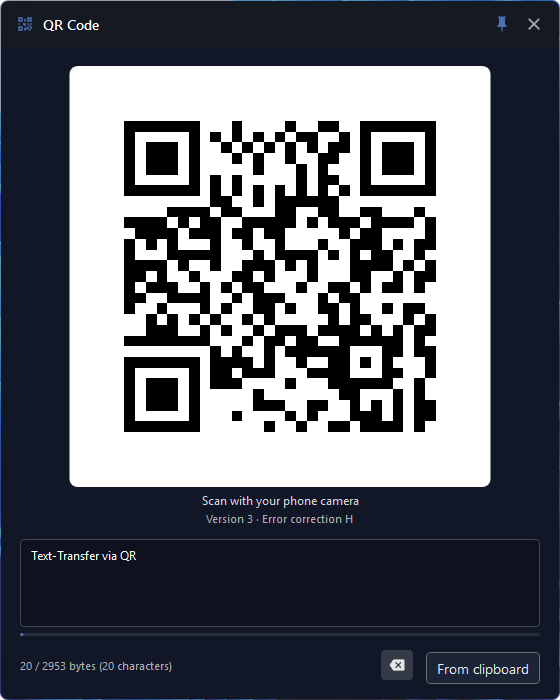
What sets the tile apart from Word and Chrome:
- Any text, not just links: a note, an address, a phone number, a tracking number, a code snippet.
- From the clipboard: the From clipboard button pulls in copied text, no typing.
- Show large: a dense code can be shown large in a window of its own, which can stay on top while you hold your phone up to it.
- No internet: the tile isn’t one of the things Celerando goes online for. The code is built on your PC, contains your text itself and doesn’t expire.
- No network between the devices: the phone reads the code off the screen with its camera. PC and phone don’t have to be on the same Wi-Fi.
The widget tiles, including QR code, countdown, Pomodoro, time tracking, connections and text templates, are part of Free, free forever. Free has up to 5 tiles on the dashboard, Free+ (free with email registration) 10, Pro (€36, one-time) unlimited; all editions are listed under Editions.
Step by step: your first QR code with Celerando
- Download and install Celerando (Windows 10 build 19041 or later, or Windows 11). It installs into your user profile, with no admin rights and no account.
- Add a QR code tile to the dashboard: right-click a tile group’s heading or an empty spot › Add widget › QR Code.
- Type your text in the input box or paste copied text with From clipboard. The code builds right away.
- A counter below the box shows how many bytes the text takes up. The limit is 2,953 bytes; the tile accepts no more, and it pastes longer text from the clipboard shortened and tells you so.
- If the tile reports a dense code, select Show large.
- Point your phone’s camera app at the screen. For a link, the phone offers to open the page; how plain text shows up depends on the phone and its camera app.
Because the dashboard opens over any window with Alt+Q, getting from your browser or email to a code is one shortcut plus a paste.
Longer text, or text in both directions? That’s what QuickShare in Celerando is for: you scan a QR code once, and the phone opens a page in its browser that moves text straight over your Wi-Fi between PC and phone, up to 100 KB per item, including from the phone back to the PC. Text works in every edition, in Free with one device, in Free+ with several. Photos and files come with Pro. The guide How to transfer photos from your computer to your phone shows how it works.
When the phone won’t read the code
| What you see | Cause | What helps |
|---|---|---|
| The camera doesn’t react | Distance or angle is off, or the screen reflects | Hold the phone straight in front of the screen, a little farther away, turn up the brightness |
| Long text won’t scan | The pattern is too fine for the camera and screen | In Celerando, try Show large first (the tile reports dense codes itself); otherwise shorten the text or split it into several codes; use QuickShare for long text |
| Word shows only the field code | The view is set to field codes | Right-click › Toggle Field Codes |
| Word shows no code at all | The field hasn’t been updated, brackets typed by hand, or the data doesn’t fit the type | Click in the field and press F9 to update it; otherwise insert the field again with Ctrl+F9, text in quotes |
| A printed code leads to someone else’s page or a subscription offer | The code held only a generator service’s redirect | Create a new code that contains the text or link itself, and reprint |
| Celerando: a tile is locked (“This tile is locked”) | Free has up to 5 tiles, widget tiles count | Free+ (10 tiles, free) or Pro (unlimited) |
Word or Celerando: the comparison
| Word (DisplayBarcode) | Celerando QR code tile | |
|---|---|---|
| What goes in | Text or a link, in quotes in the field | Text or a link, also from the clipboard |
| Made for | A code in a document, for printing | A code on screen, for scanning |
| Effort | Open Word, insert the field, toggle it | Alt+Q, paste the text |
| Platform | Word for Windows (desktop) | Windows 10 (build 19041 or later) and 11 |
| Internet needed | no | no |
| Cost | comes with Word | included in Free |
If the code is going on paper, use Word. If you want to get a piece of text from your PC to your phone quickly, the tile is shorter. For links, Chrome is often enough; it isn’t meant for free text.
Online generators offer more design (colors, logos, formats). In return you usually can’t tell whether your text leaves the browser, and with some services the code depends on an account. If you use one, make sure it creates a static code that contains the content itself.
FAQ
How do I turn text into a QR code without uploading it?
Use a tool that builds the code on your PC: the DisplayBarcode field in Word, or the QR code tile in
Celerando. With either, the text never leaves your computer.
Does a QR code I create myself ever expire?
Not if it contains the text itself. There’s nothing that could be switched off. Only codes that point to a service’s redirect can expire.
How much text fits in a QR code?
According to DENSO WAVE, at most 2,953 bytes of arbitrary data, 4,296 alphanumeric characters or 7,089 digits. For scanning off a screen, short texts are much easier.
Can I scan a QR code on my PC too?
Creating and reading are different jobs. The Celerando tile creates codes; it doesn’t read them. If you want to get text from your phone onto your PC, use QuickShare: paste the text on the QuickShare page in the phone’s browser and send it.
Does Celerando need the internet for this?
No. Celerando goes online only for downloads you choose (models, additional languages, the optional CUDA runtime), the update check, license activation including the query of occupied seats, a one-time installation ping on the very first launch, and addresses you enter yourself (web app tiles load the site’s icon, the connections tile checks your servers). The QR code tile isn’t one of them.
Can an iPhone read QR codes without an extra app?
Yes, Apple describes scanning with the iPhone’s Camera app. Many Android phones can do it with the camera as well; how depends on the manufacturer.
How do I get photos from my phone onto my PC?
That’s not a job for QR codes but for a transfer by cable, cloud or Wi-Fi. The guide How to transfer photos from your phone to your PC compares the options.
Sources
As of October 31, 2026.
- Microsoft Support: Field codes: DisplayBarcode (syntax, QR example,
\qand\sswitches, Ctrl+F9, Toggle Field Codes, Word for Windows only) - Microsoft Support: Insert, edit, and view fields in Word (updating a field with F9)
- Google Chrome Help: Share tabs in Chrome (create, download and scan a QR code for the open page)
- DENSO WAVE: QR Code Standardization (maximum data capacity, error correction levels L to H)
- DENSO WAVE: Information capacity and versions of QR Code (versions 1 to 40)
- Apple Support: Scan a QR code with your iPhone camera
More guides
- How to transfer photos from your computer to your phoneTransfer photos from your computer to your phone: over Wi-Fi without a phone app or cloud, or by USB, for Android and iPhone. Plus fixes when it doesn't work.
- Transfer photos from your phone to a PC: with or without USBTransfer pictures from your phone to your computer: Android or iPhone, by USB or over Wi-Fi without a phone app or cloud, plus fixes when Windows can't find it.
- Print Screen not working? Fix PrtScn and Snipping ToolPrtScn, Win+Shift+S or Snipping Tool doing nothing? The usual causes on Windows 10 and 11, a way to screenshot without Print Screen, and what actually helps.